

Find your way around
The dashboard sidebar is grouped by what you’re doing. Which items you see depends on your role and on the modules your organization has.
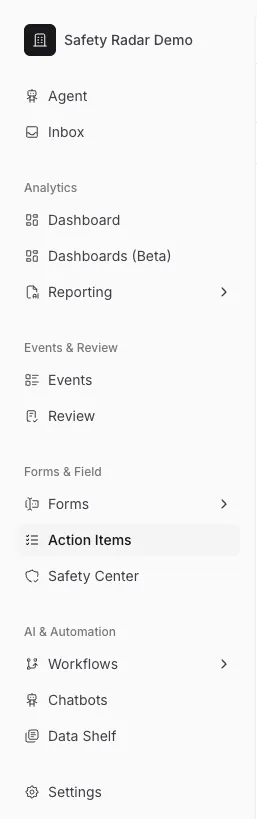
Sidebar
Section titled “Sidebar”| Item | What it’s for |
|---|---|
| Agent | Safety Radar’s AI assistant. Ask questions about your safety data in plain language. This is where the dashboard opens. |
| Inbox | Your notifications: assignments, comments, status changes and form reviews. |
| Analytics | |
| Dashboard | An overview of your organization’s safety data. |
| Dashboards (Beta) | Build your own dashboards of widgets, with help from the AI assistant. |
| Reporting | Create AI-assisted Reports on your safety data and save point-in-time Snapshots. |
| Events & Review | |
| Events | Every incident, near miss and other safety event. |
| Review | A queue of events whose metrics need someone to check them. |
| Investigations | Formal root-cause investigations (an add-on module). |
| Forms & Field | |
| Forms | Build forms, and see their Submissions. |
| Action Items | Follow-up tasks and who they’re assigned to. |
| Safety Center | Set up your field workers’ web portal. |
| AI & Automation | |
| Workflows | Automate processing and analysis of events. Run a workflow on one event, or on many at once with Batch Runs, and see results under Runs. |
| Chatbots | Set up chat assistants for your people, for example the one in the Safety Center. |
| Data Shelf | Documents and data you share with your team and your assistants. |
| Settings | Your organization’s settings and your own account. |
Settings
Section titled “Settings”Most settings are visible to everyone, but only admins can change them.
| Page | What it’s for |
|---|---|
| Organization | Your organization’s name and security settings, including requiring two-factor authentication. |
| Agent | Configure the AI assistant for your organization (admins only). |
| Metrics | The measures recorded on each event, such as severity or risk. See metrics. |
| Permissions | Permission groups: what members can read, write or manage in each area. |
| Members | People in your organization and pending invitations. See Users and invitations. |
| Triggers | Rules that pick out events by their properties, which you can test against a set of events. |
| Assets, Tags, Departments, Equipment Types | The lists your events and forms refer to. |
| Statuses | The statuses events and action items move through. |
| Investigations | Investigation settings. See Investigation settings. |
| Account → Account, 2FA | Your own account and two-factor authentication. |
| Account → API Keys | Keys for the REST API. See API keys. |
| Role | Access |
|---|---|
| Admin | Full access to everything, including all settings, members and roles. |
| Member | The dashboard, with access to each area set by their permission groups (Read, Write, Manage or No Access). |
| Safety Center User | The Safety Center and the mobile app only. No dashboard. |
Your account menu
Section titled “Your account menu”Select your avatar at the bottom of the sidebar for My Profile, Theme (Light, Dark or System) and Sign Out.