

The Events list
The Events page lists every event in your organization, newest event date first. Each row shows the Title (with the External ID underneath), Description, Date, Location, Assignee, Reported By, Type and Status.
Search
Section titled “Search”Select the search icon and type. The list updates as you type and matches any part of a word, ignoring upper and lower case. Search looks in:
- the title, description and External ID (event number)
- the type and status
- the event date, written as
YYYY-MM-DD(for example2026-09-14, or2026-09for a whole month) - the location name
- the assignee’s and reporter’s names
- the extra details (Additional Information) on the event
Each search term is matched against one field at a time. To narrow by city or state, use a filter instead.
Filter
Section titled “Filter”- Filters → Location → No location shows events that have no location.
- Advanced Filters builds rules: pick a column, an operator (equal, not equal, greater than, less than, contains, not contains, or in a list of values) and a Value. Add as many rules as you need. You can filter on the extra details and metric data by key.
- Clear removes all filters.
Safety Radar remembers your filters, sorting and search on this page, so they’re still there next time you come back.
Select a column header and choose Asc or Desc.
Saved views
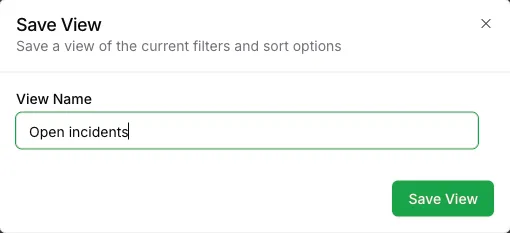
Section titled “Saved views”A view saves the current filters, sort and search so you can come back to them with one click.
- Set up the filters, sort or search you want.
- Select the Save View icon next to Select View.
- Enter a View Name. Admins also choose the View Type:
- Organization: everyone in your organization can use it.
- User: only you can see it. Members can only save User views.
- Save. To open a view later, pick it from Select View.
To change a view, open it, adjust the filters, and select Update View. To stop using a view, select Clear View. Delete View removes it. Only admins can update or delete Organization views.
Update several events at once
Section titled “Update several events at once”Select events with the checkboxes. Admins then get an Actions button with:
- Change Status: move all selected events to a status.
- Change Assignee: assign all selected events to one person.
- Run Workflow: run a workflow on the selected events.
Export
Section titled “Export”To export an event, open it and use Actions → Download PDF or Download Word. There is no export of the whole list from this page; use Reporting or the API instead.