
Safety Center
The Safety Center is your organization’s own web portal for people in the field. From a phone or computer they can submit forms, see and complete their action items, ask the safety assistant questions, and open the documents and links you share. It doesn’t need the dashboard or a dashboard login role.
How people sign in
Section titled “How people sign in”The Safety Center has its own web address for your organization. People sign in with their email or phone number and a one-time code, or with SSO if your organization uses it. Everyone who uses it needs a user account in your organization; the Safety Center User role gives access to the Safety Center and the mobile app only, not the dashboard.
Set up the Safety Center
Section titled “Set up the Safety Center”You need the right access in the dashboard to change these settings.
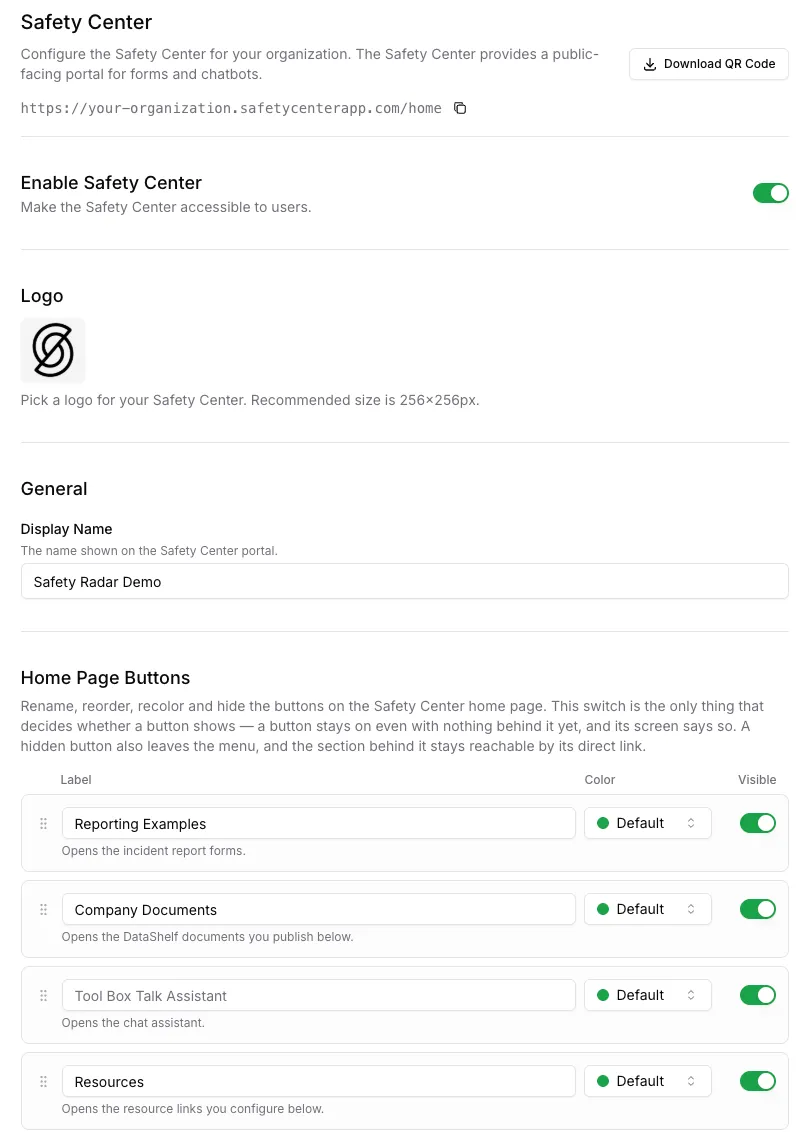
- Open Safety Center in the sidebar (under Forms & Field).
- Turn on Enable Safety Center to make the portal available.
- Set your branding: upload a Logo (256×256 px works best) and a Display Name.
- Under Home Page Buttons, rename, recolor, reorder or hide the buttons people see on the home page. The defaults are Incident Reports, Helpful Documents, Tool Box Talk Assistant and Resources.
- Under Forms, pick which published forms appear in the Safety Center.
- Choose the Chatbots and DataShelf documents to make available, and add Resource Links.
- Optionally set a Help Center URL under Support. If you leave it blank, the help menu shows a Contact us form that reaches Safety Radar support.
- Select Update to save.
Share it with your team
Section titled “Share it with your team”At the top of the settings page you can copy the Safety Center’s web address, or select Download QR Code for a printable page that says “Scan to access Safety Center”. Post it in break rooms, on job boards or in vehicles. There is one address and QR code for your whole organization.
What field workers see
Section titled “What field workers see”- Incident Reports: select New, pick a form, and fill it in. The Submissions tab lists what they’ve submitted; Action Required lists action items assigned to them, where they can add Response notes and complete them.
- Helpful Documents: the documents you shared.
- Tool Box Talk Assistant: a chat assistant that answers safety questions in English or Spanish.
- Resources: the links you added.
Common questions
Section titled “Common questions”Can people report anonymously? Not through the Safety Center; everyone signs in. Contact support if you need an anonymous reporting option.
Can I have a separate portal or QR code per site? No. There’s one Safety Center per organization. Use the forms’ location fields to record where a report comes from.