

Users and invitations
Manage the people in your organization in Settings → Members. The table lists members and pending invitations, with each person’s Role and Permissions. Pending invitations show as Invited.
You need to be an admin to change roles, revoke invitations or remove members.
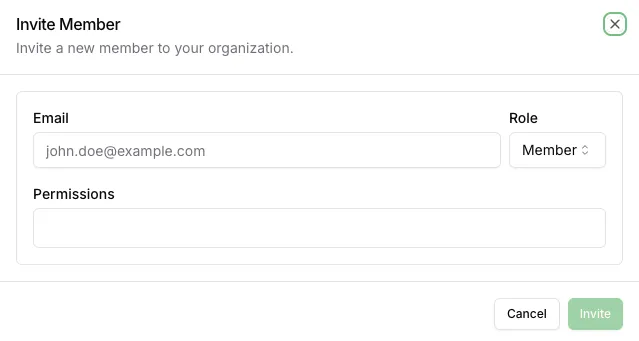
Invite someone
Section titled “Invite someone”- In Settings → Members, select Invite Member.
- Enter their Email.
- Choose a Role:
- Admin: full access to everything.
- Member: dashboard access, set by their permission groups.
- Safety Center User: the Safety Center and mobile app only.
- For a Member or Safety Center User, choose at least one permission group under Permissions.
- Select Invite.
They get an email, Invitation to join your organization, with an Accept Invitation button. See Accept an invitation for what happens next.
If your organization signs in with SSO, people can also join by signing in with SSO for the first time; they don’t need an invitation.
Revoke an invitation
Section titled “Revoke an invitation”Open the menu on the invitation’s row, select Revoke Invitation, and confirm. The link in their email stops working.
Permission groups
Section titled “Permission groups”Members’ access to each area of the dashboard comes from their permission groups. Manage groups in Settings → Permissions. For each area, a group gives Read, Write, Manage or No Access. Default groups can’t be edited.
Change someone’s role or access
Section titled “Change someone’s role or access”Open the menu on the member’s row and select Edit Access. Change their Role and Permission Groups, then select Save.
Update Details changes their External ID, Supervisor and Locations. People can change their own Full Name.
Remove a member
Section titled “Remove a member”Open the menu on the member’s row, select Remove Member, and confirm. They lose access to the organization; their past activity stays on the record. You can invite them again later.
Admins can’t be removed from this menu. Contact Safety Radar support to remove an admin.
To leave an organization yourself, open the menu on your own row and select Leave Organization. An organization must always have at least one admin, so the last admin can’t leave.
Bulk changes
Section titled “Bulk changes”Bulk Actions updates many members at once: User Add, User Remove, Update Supervisor, Update Department and Update Location.