

Forms
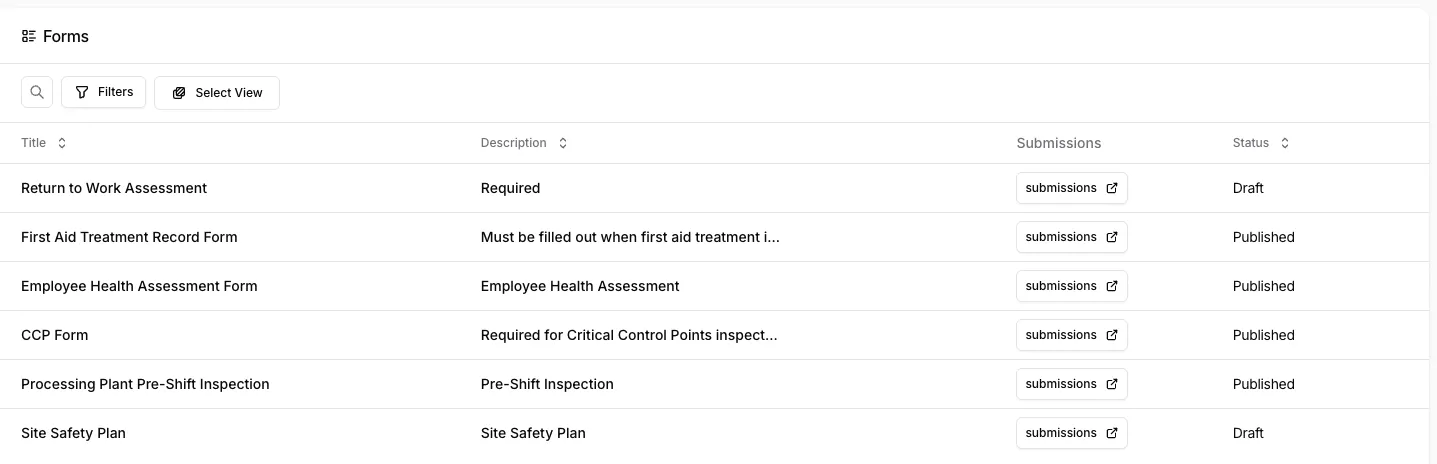
Forms are how your people report and record things in the field: incident reports, inspections, toolbox talks, observations. You build a form in the dashboard, publish it, and your team fills it in from the Safety Center or the mobile app. Every completed form becomes a submission you can review.
Create a form
Section titled “Create a form”- Open Forms in the sidebar (under Forms & Field) and select Create Form.
- Enter a Title and Description.
- Choose the Form Options:
- Generate Event: each submission also creates a safety event. The form gets the fields that events need.
- Approvals Required: submissions go through an approval flow based on the answers. Choose the Status Flow to use.
- Optionally, describe the form you want in AI Description, or upload an existing form with Upload Simple PDF, and Safety Radar drafts the fields for you.
- Select Create Form.
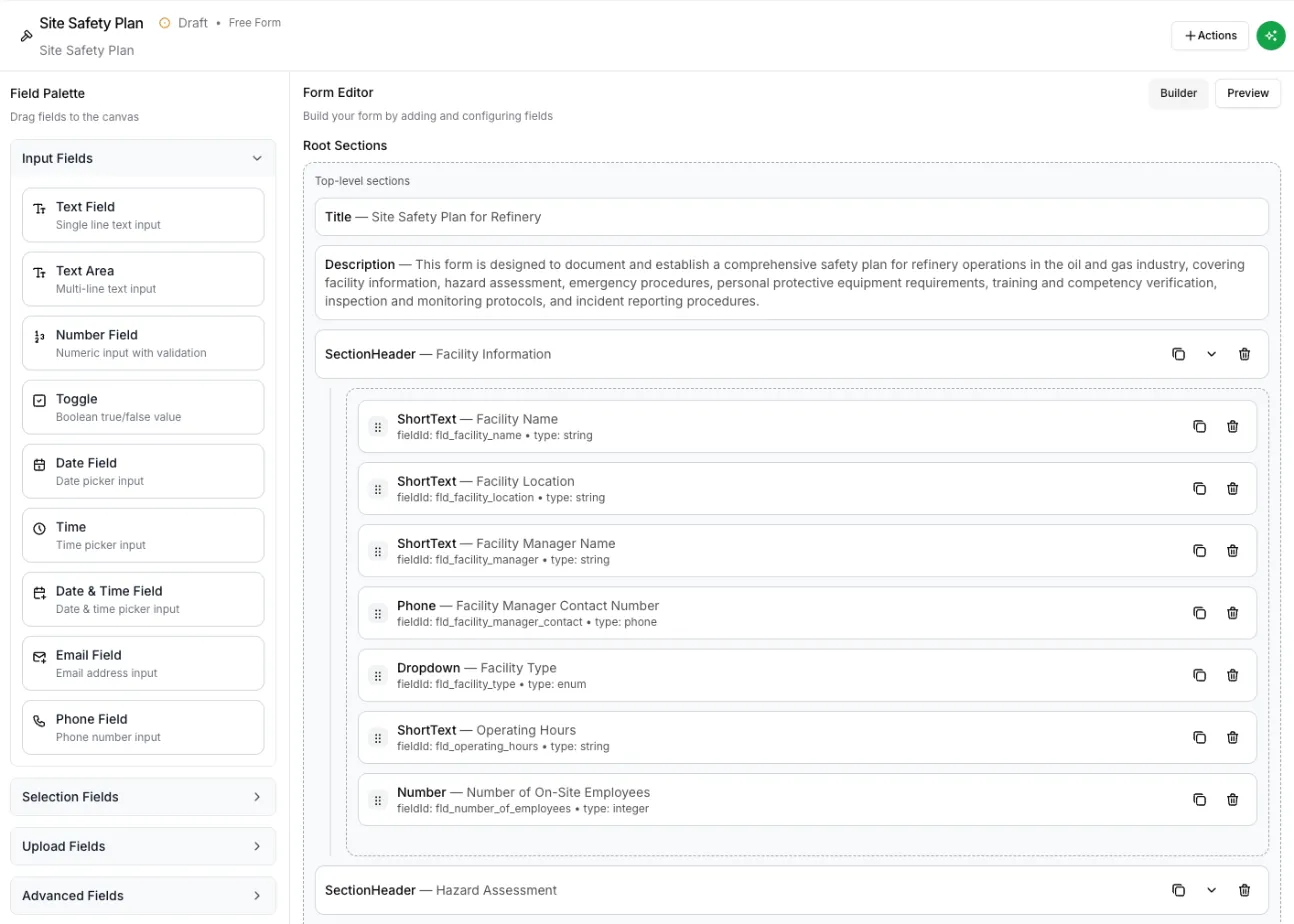
The form opens in the builder as a Draft.
Build the form
Section titled “Build the form”Drag fields from the Field Palette on the left onto the Form Editor:
| Group | Fields |
|---|---|
| Input Fields | Text Field, Text Area, Number Field, Toggle, Date Field, Time, Date & Time Field, Email Field, Phone Field |
| Selection Fields | Dropdown, Checkbox Group, Radio Group, Async Lookup (for example a supervisor, location or piece of equipment) |
| Upload Fields | File Upload |
| Advanced Fields | Map Location, Signature, Repeat (Table/Roster), Section, Divider, Summary Description |
On a Section, turn on Enable Action Items to let reviewers create action items from that section of a submission.
Publish a form
Section titled “Publish a form”Open the Actions menu and select Set as Published. Published forms can take new submissions; Set as Draft takes a form out of use without deleting it. To show a published form in the Safety Center, add it under Forms on the Safety Center settings.
The Actions menu also has Edit Title, Duplicate, Delete, turning Generate Event on or off, and Configure Verification.
Check submissions before they’re sent
Section titled “Check submissions before they’re sent”Configure Verification has Safety Radar’s AI check each submission for missing or unclear information. Choose how strict it is:
- Background verification (default): the submission goes through, and any issues are noted for reviewers.
- Confirm before submitting: the person filling in the form sees the issues and can fix them or select Submit anyway.
- Block until fixed: the form can’t be submitted until the issues are fixed.
Review submissions
Section titled “Review submissions”Open Forms → Submissions to see every submission, with its Form Title, Reviewer, Action Required By, Location, Status (Pending, In Progress, Complete), Created At and Submitted By. Filter by status, or use the Alerts filter to find submissions the verification check flagged. Use Download to export a submission.
If the form has Generate Event on, each submission also appears on the Events page.
Who can fill in forms
Section titled “Who can fill in forms”Anyone in your organization who signs in to the Safety Center or the mobile app can fill in published forms that are available to them. There is no public, sign-in-free link to a form.